


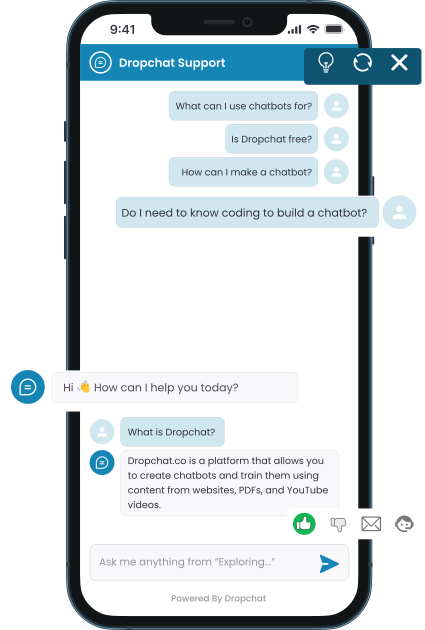














Steps to create your first chatbot using various data sources.


Start Free Trial
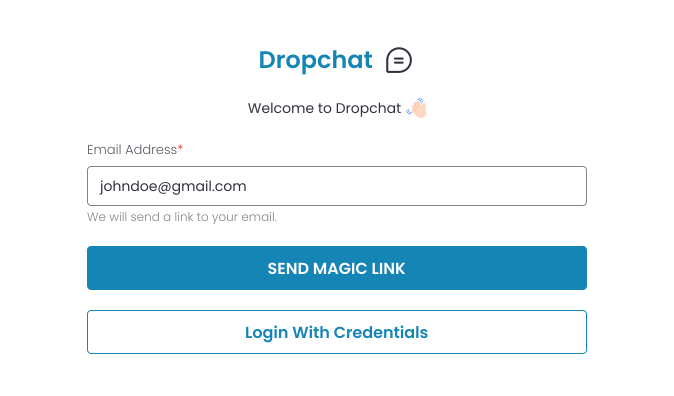
Start Free Trial
Create a chatbot easily with Dropchat's no-code interface. Begin immediately on our trial page, no sign-up needed.


Add Data Sources
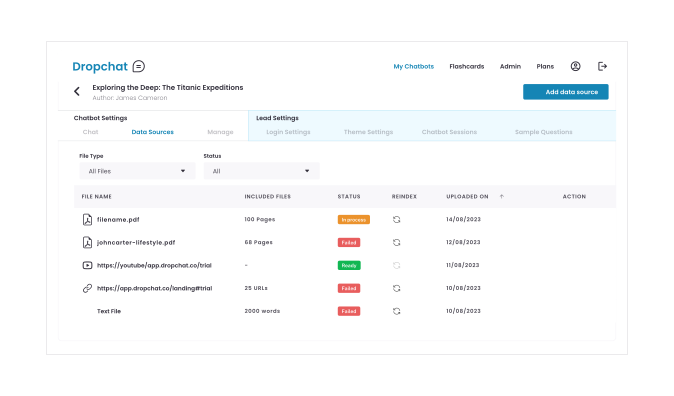
Add Data Sources
Dropchat simplifies the process of building intelligent chatbots by allowing you to seamlessly incorporate diverse data sources like PDFs, YouTube content, websites, and text files.
With a quick upload, its advanced AI goes to work analyzing and structuring the information, enabling the swift creation of chatbots that are knowledgeable across a broad spectrum.
These chatbots can offer personalized, precise responses, making the integration of complex data into an accessible chatbot experience not only feasible but straightforward and efficient.


Start Chatting
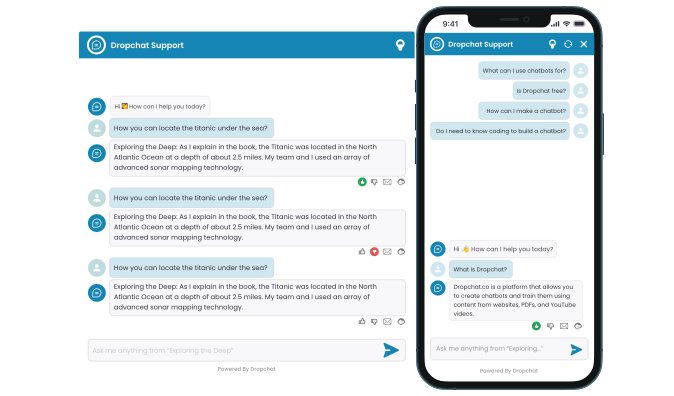
Start Chatting
After integrating various data sources to build your chatbot with Dropchat, the chatting process is designed to be interactive and user-centric. Users can engage with the chatbot by asking sample questions to kickstart conversations.
As they interact, users have the option to provide immediate feedback on the chatbot's responses through thumbs up or down voting, helping the system to learn and improve over time.
If a query is too complex or if the user isn't satisfied with the chatbot's answers, the conversation can be escalated in two ways: either by directing the query to an email for a more detailed response or by transferring the interaction to live agents who can provide real-time assistance.
This seamless escalation process ensures that users receive the right level of support, blending automated efficiency with human insight to enhance the overall experience.


Analytics
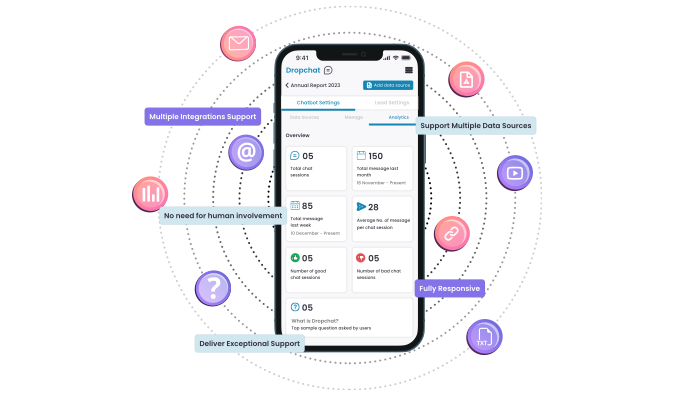
Analytics
Dropchat's platform also includes a comprehensive analytics feature that tracks the number of interactions users have with the chatbot.
This data is crucial for analyzing the performance of the chatbot, providing insights into how well it is responding to user queries and identifying areas for improvement.
Start Free Trial
Create a chatbot easily with Dropchat's no-code interface. Begin immediately on our trial page, no sign-up needed.
Add Data Sources
Dropchat simplifies the process of building intelligent chatbots by allowing you to seamlessly incorporate diverse data sources like PDFs, YouTube content, websites, and text files.
With a quick upload, its advanced AI goes to work analyzing and structuring the information, enabling the swift creation of chatbots that are knowledgeable across a broad spectrum.
These chatbots can offer personalized, precise responses, making the integration of complex data into an accessible chatbot experience not only feasible but straightforward and efficient.
Start Chatting
After integrating various data sources to build your chatbot with Dropchat, the chatting process is designed to be interactive and user-centric. Users can engage with the chatbot by asking sample questions to kickstart conversations.
As they interact, users have the option to provide immediate feedback on the chatbot's responses through thumbs up or down voting, helping the system to learn and improve over time.
If a query is too complex or if the user isn't satisfied with the chatbot's answers, the conversation can be escalated in two ways: either by directing the query to an email for a more detailed response or by transferring the interaction to live agents who can provide real-time assistance.
This seamless escalation process ensures that users receive the right level of support, blending automated efficiency with human insight to enhance the overall experience.
Analytics
Dropchat's platform also includes a comprehensive analytics feature that tracks the number of interactions users have with the chatbot.
This data is crucial for analyzing the performance of the chatbot, providing insights into how well it is responding to user queries and identifying areas for improvement.




Free
$0/mo
Start for free and upgrade to a paid plan when ready.
-
 2 chatbots
-
600 chat messages / month
-
PDF chat
-
Website chat
-
YouTube chat
Starter
$24/mo
Get access to more features and more messages per month.
-
10 chatbots
-
6,000 chat messages / month
-
Phone support
-
Larger PDF files and websites
-
+ All free tier features
Growth
$99/mo
More chatbots, features, onboarding and customized training.
-
20 chatbots
-
30,000 chat messages / month
-
Larger PDF files and websites
-
Customer success manager
-
+ All free and starter tier features